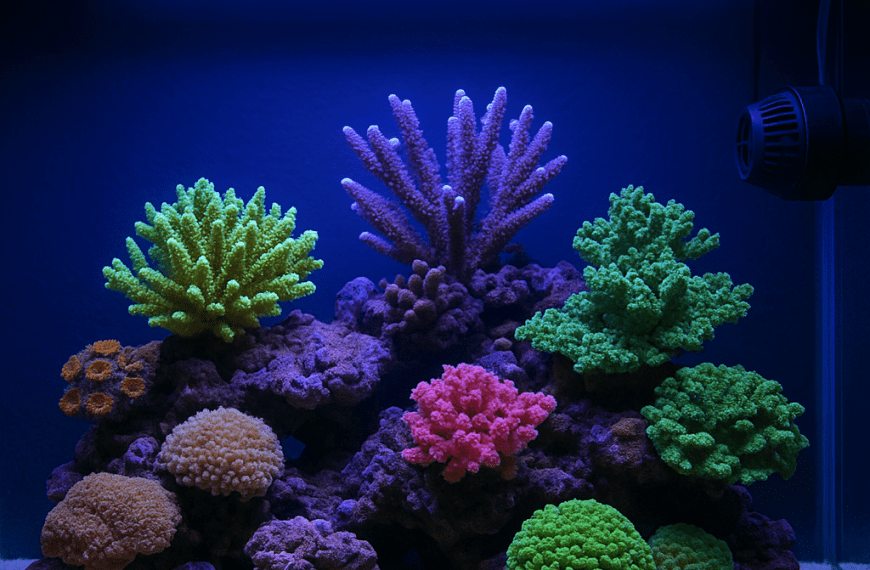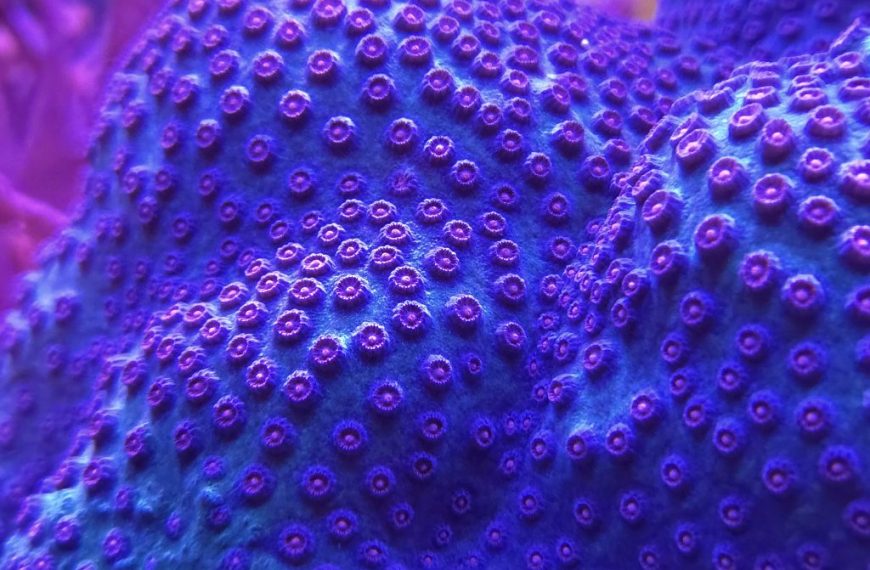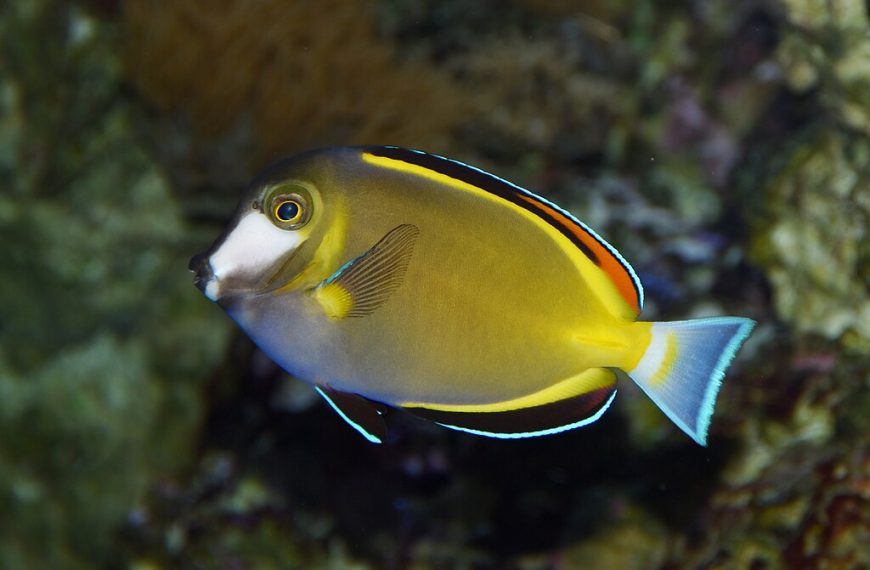

Blue LEDs can fool your camera fast. White balance fixes color at capture time. It also saves hours in editing.
Start with stable light and a repeatable setup
White balance works best when your lighting is consistent. Pick one photo mode and stick with it. Turn off room lights to avoid mixed color.
Lock your aquarium lights for photos. Use the same spectrum and intensity each session. Many reef LEDs have a photo preset. Use it each time.
Clean the glass before you shoot. Wipe salt spray from the outside. Remove algae film inside with a magnet. Haze shifts colors and lowers contrast.
Shoot perpendicular to the glass. Keep the lens flat to reduce distortion. Use a rubber lens hood if you have one. It blocks reflections well.
- Set pumps to feed mode for 5–10 minutes.
- Use ISO 100–400 to reduce noise in blue channels.
- Use 1/125s or faster for fish movement.
For more camera basics, see reef tank photography basics. For glare control, review aquarium glare and reflection control.
Dial in white balance in-camera for reef lighting
Auto white balance often fails under heavy blue light. Corals can turn purple or gray. Fish can look neon. Use manual Kelvin or a custom white balance.
Start with Kelvin mode if your camera offers it. For mixed reef lighting, try 10,000K to 20,000K. Many tanks look natural near 14,000K. Adjust in 500K steps.
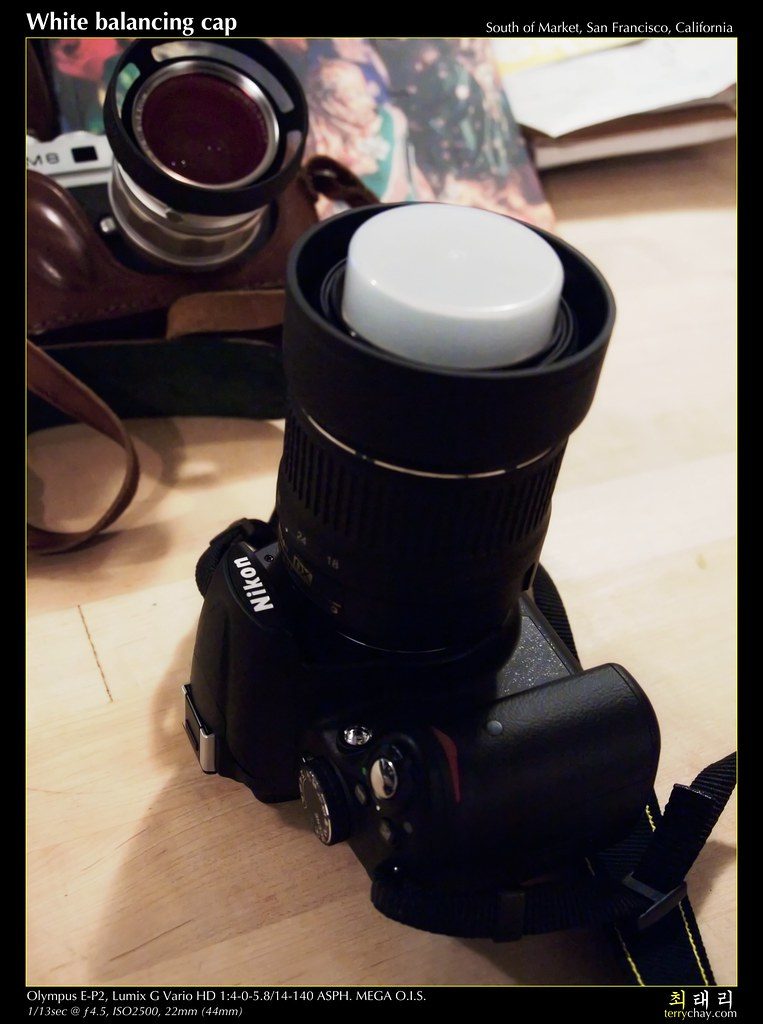
Custom white balance is more accurate. Place a gray card in the tank. Use a clean frag rack to hold it. Fill most of the frame and set custom WB.
If you cannot submerge a card, use a white PVC fitting. Keep it under the same light as the coral. Avoid bright sand as a reference. Sand often clips highlights.
- Use a gray card or white PVC at mid-depth.
- Disable “vivid” picture styles for more neutral color.
- Check the histogram and avoid blown blue highlights.
RAW capture gives the most control later. It also helps recover color casts. JPEG locks many choices in place. If you shoot JPEG, custom WB matters more.
Troubleshoot common color problems and fix them fast
Green water casts can happen with heavy cyan channels. Lower the green channel in your light preset. Then reset white balance. A small spectrum change can help a lot.
If corals look too orange, your white balance is too warm. Raise Kelvin or shift tint toward magenta. If they look too blue, lower Kelvin. Make one change at a time.
Banding can appear with LED shimmer and fast shutter speeds. Try 1/60s to 1/125s and use stabilization. You can also raise the light intensity briefly. More light reduces flicker issues.
Color fringing can show on high contrast edges. It often hits near the glass corners. Zoom in slightly and avoid the edges. Stop down to f/5.6 to f/8 if possible.
- Take a test shot, then adjust Kelvin by 500–1,000K.
- Recheck WB after any light schedule change.
- Save one “photo preset” in your light app.
When you want consistent progress shots, log your settings. Note Kelvin, ISO, shutter, and lens distance. Pair that with stable tank parameters. See reef tank parameter stability for a simple routine.
White balance is a skill you can repeat. Use stable light and clean glass. Set Kelvin or custom WB each session. Your corals will look closer to real life.
Sources: Canon EOS manual sections on White Balance and Custom WB; Nikon DSLR manual sections on White Balance; Adobe Lightroom documentation on White Balance and RAW workflow; CIE guidance on correlated color temperature basics.
Was this helpful?
Related Posts
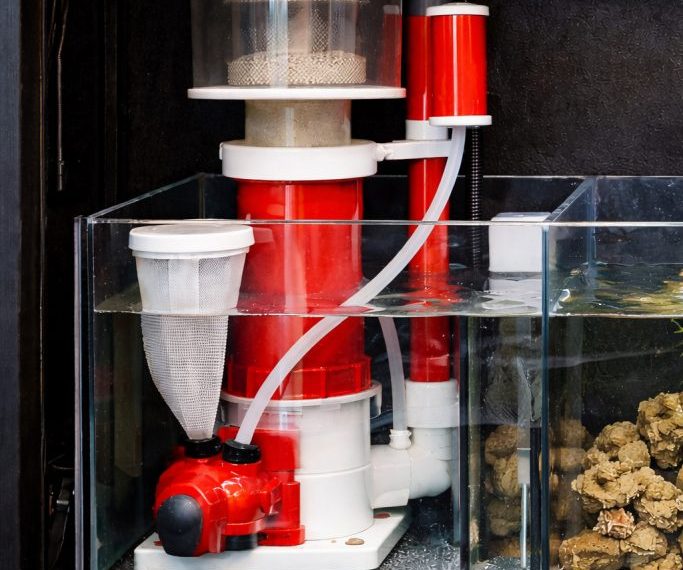
Protein Skimmer Reef Tank Guide
Learn how a protein skimmer works, how to size one, and how to tune it for a cleaner,…
 By
By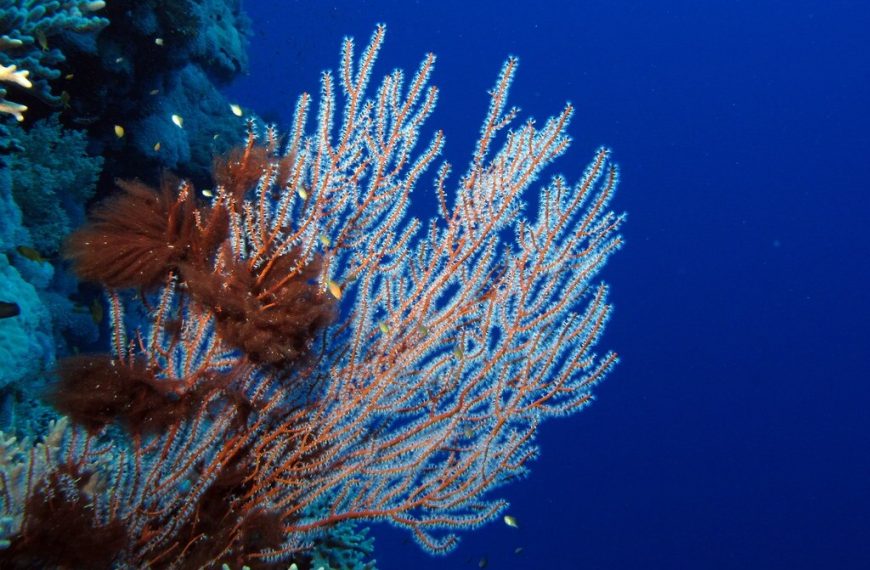
Reef Aquarium Water Parameters
Learn the ideal reef aquarium water parameters, safe ranges, and how to keep salinity, alkalinity, nutrients, and pH…